



Android 17 hidden features can make your phone more useful, private and easier to customize, but many of them aren’t immediately obvious. Google’s latest Android release adds new tools for multitasking, privacy, security, customization and everyday use. From floating app windows to better lost-device protection, these Android 17 features are worth exploring after you update your phone. Here are 10 Android 17 hidden features worth trying.
1. Turn Apps Into Floating Bubbles
One of the most useful Android 17 features is Bubbles. You can turn an app into a compact floating window that stays above other apps, making it easier to switch between tasks. How to use it: Long-press a supported app icon and select the Bubble option. Google says Bubbles can also be docked into a dedicated bar on larger-screen devices, where you can quickly switch between apps. This is useful when checking a map, reading notes or keeping another app available while working elsewhere.
2. Record Your Screen and Reaction Together
Android 17 adds Screen Reactions, which lets you record your phone screen while simultaneously using the selfie camera.
How to use it: Open Quick Settings → Screen Recorder → select the reaction option when available.
This is particularly useful for tutorials, gaming clips and reaction videos because you don’t need a separate recording setup. Google says the feature is designed to let users capture their screen and reactions together.
3. Try Foldable Gaming Mode
Android 17 introduces a dedicated gaming experience for supported foldable phones. Compatible foldables can use an optimized 50/50 layout, placing the game above a dynamic gamepad area. Google says the feature is designed to make better use of the larger screen while gaming. External controllers can also benefit from native controller remapping on supported devices. Note: This feature is designed specifically for compatible foldable devices.
4. Use Temporary Precise Location
Privacy is one of the most useful areas of the Android 17 update. Android 17 lets users provide an app with precise location information temporarily for a specific task instead of giving it unnecessary long-term access. For example, a restaurant or navigation app may need your precise location while you’re actively using it, but there may be little reason to provide continuous access afterward.
Tip: Review location permissions regularly and choose the most restrictive option that still lets an app work properly.
More Read




5. Lock a Lost Phone With Biometrics
Here’s an Android 17 security feature that you should know before you lose your phone. Google has enhanced Find Hub’s Mark as lost feature so supported devices can be locked using biometric authentication. That adds protection if someone has obtained your PIN or passcode.
How to use it: Open Find Hub on another device → select your missing phone → choose Mark as lost.
Google says additional protections can also hide Quick Settings and prevent new Wi-Fi and Bluetooth connections while the device is protected.
6. Hide App Names on Your Home Screen
Want a cleaner-looking home screen?
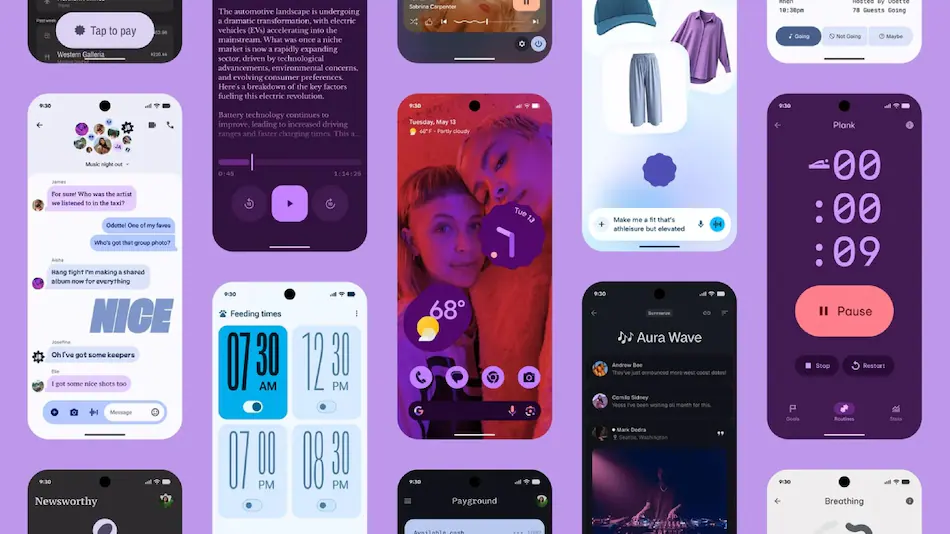
Android 17 adds an option to hide app names beneath icons. Google lists this among the new customization improvements arriving with Android 17.
How to find it: Long-press an empty area of the Pixel home screen → open Home settings → look for the app-label option.
The exact menu can vary depending on the Android launcher and manufacturer.
7. Try the Expanded Dark Theme
Android 17 gives users more control over Dark theme, including an expanded option that can apply dark styling more broadly. Google says the expanded mode can affect apps that don’t necessarily provide their own full dark theme, although some apps may not display perfectly.
How to find it:
Settings → Display & touch → Dark theme
Then look for the expanded option on supported devices. It’s worth trying if you prefer a darker interface, especially at night.
8. Let Android Manage App Memory
Here’s an Android 17 hidden feature that works mostly in the background. Google has introduced app memory limits designed to prevent individual applications from consuming excessive amounts of RAM. The goal is to improve overall performance and battery life. You don’t need a third-party RAM-cleaning application to use it. Android handles the memory management automatically, so installing apps that constantly claim to “boost RAM” generally isn’t necessary.
9. Use Better Privacy for Contacts
Android 17 also improves control over contact information. Google says users can share specific contacts with an app instead of giving it access to their entire address book. This can be particularly useful when an app needs access to one person but doesn’t need to read your entire contact list. Whenever an app asks for contacts, consider whether it genuinely needs access to everything.
10. Strengthen Android 17 Theft Protection
Android 17 includes several additional protections designed to make stolen phones harder to access. Google has reduced the number of PIN or password guesses allowed on supported devices and increased waiting periods after failed attempts. Android 17 also expands theft-related protections and Advanced Protection features. You can also use Google’s Find Hub to locate or secure a missing device.
Our advice: Don’t wait until your phone disappears. Check your Google account and Find Hub settings now.
Bonus: Android 17 Parental Controls
Android 17 expands built-in Parental Controls to Android devices that update to the new operating system. Parents can manage screen time, app limits and downtime directly from Android settings, while Google Family Link provides additional controls. This is particularly useful for families that don’t want to rely entirely on third-party parental-control applications.
Android 17 Hidden Features: Final Verdict
The best Android 17 hidden features aren’t necessarily the flashy ones. Google’s latest update quietly adds better privacy controls, stronger theft protection, improved multitasking and more ways to customize the Android experience. Features such as temporary precise location and enhanced Mark as lost protection are especially useful because they can protect your personal information without requiring much effort.
For creators, Screen Reactions is one of the more interesting additions, while Bubbles and improved multitasking can make everyday phone use more convenient. Android 17 is therefore more than a visual refresh.
Spend a few minutes exploring these settings, and you may discover that your phone can do considerably more than you realized.